
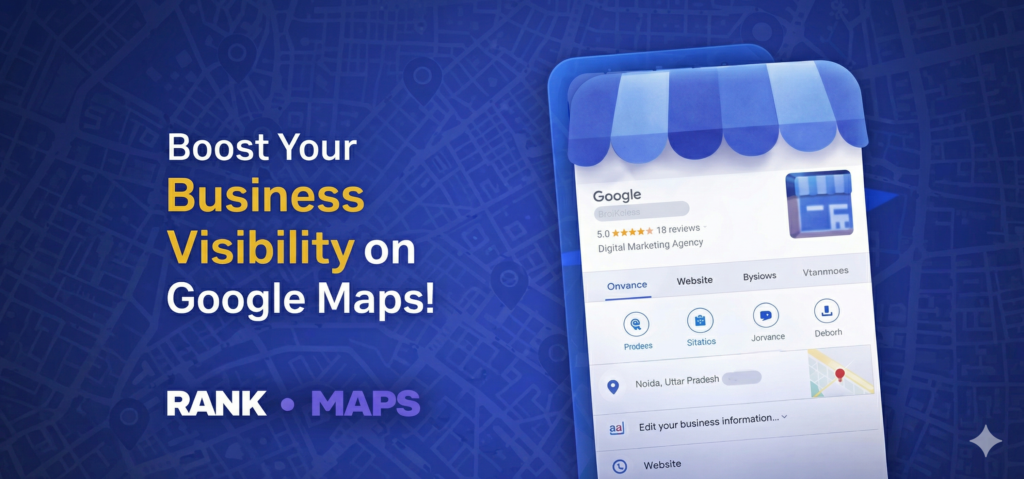
Your first clinic in Vashi is doing well, so you open a second one in Kharghar. Or your bakery gets a new outlet in Thane. Now you want the new branch on Google Maps too, without messing up the listing and reviews you worked hard to build for the first one.
Good news: this is exactly what Google Business Profile is designed for. Here’s how to add a second location to Google Business Profile properly, and the mistakes that cause trouble.
The short answer
To add a second location to Google Business Profile, create a separate profile for the new branch using the same Google account, the same business name (as shown on the signboard) and the same main category. Each location needs its own real address, signage, phone number if possible, and its own verification. Don’t change the address on your first profile, and don’t create extra profiles for places you don’t actually operate from.
One location = one profile
Google doesn’t let one profile show two addresses. Every physical branch gets its own listing, with its own reviews, photos and hours. Your first location stays exactly as it is.
Google’s guidelines for chains and brands ask for consistency:
- Same name across locations, unless a branch genuinely uses a different name on its storefront
- Same main category if they offer the same service
So “Smile Dental” in Vashi and “Smile Dental” in Kharghar, not “Smile Dental Kharghar Best Dentist”.
Step by step
- Get the branch ready first. Permanent signage up, staff in place, phone connected.
- Sign in to the same Google account that manages your first profile.
- Go to business.google.com and choose to add a new business or location.
- Enter the same business name as your signboard.
- Pick the same primary category as your first branch.
- Enter the new address and place the pin on the branch entrance.
- Add a phone number for that branch. A local number for each location is better than one central number.
- Add the website. Ideally link to a page for that specific branch.
- Complete verification for the new location.
- Fill in hours, services, photos of the new branch and a description.
Managing multiple locations
Once you have more than one profile, you can manage them from the same account. You can group them together, give branch managers access to only their location, and keep owner access with the business. For safe access rules, see how to manage owners and managers.
If you run a larger chain, Google offers bulk verification for businesses with many locations, so you don’t have to verify each one individually. Check your Business Profile dashboard for the options available to you.
Give each branch its own web page
Linking every location to your homepage is a missed chance. A separate page for each branch, with its address, map, hours, phone, local photos and reviews, helps both customers and Google. We follow this same approach for our own area pages, like Kharghar and Vashi. Our local landing page checklist lists what each page should include.
Mistakes to avoid
- Changing the address on your first profile to the new branch. You’d lose the first location from Maps.
- Creating profiles for places you don’t operate, like a friend’s shop or a virtual office, to cover more areas.
- Adding the area name to the business name, unless it’s genuinely on the signboard.
- Using the same phone number on every branch without any local numbers.
- Copying the same description and photos for every branch.
What if you moved, not expanded?
If you closed the old branch and opened a new one, that’s a move. Update the address on the existing profile instead of creating a new one. See how to mark a business closed or moved on Google.
FAQs
Will my reviews carry over to the second location?
No. Each profile has its own reviews. The new branch starts fresh.
Can both locations use the same phone number?
They can, but a separate local number for each branch is better for customers and tracking.
Do I need to verify each new location?
Yes, each location is verified separately, unless you qualify for bulk verification.
Can a service-area business add a second location?
Only if you have a genuinely separate base with its own staff and service area. Google’s guidelines allow one profile per location in that case.
Opening a new branch?
We can set up and verify the new location and build its branch page so it starts ranking quickly. See our GBP setup service or contact us.
